


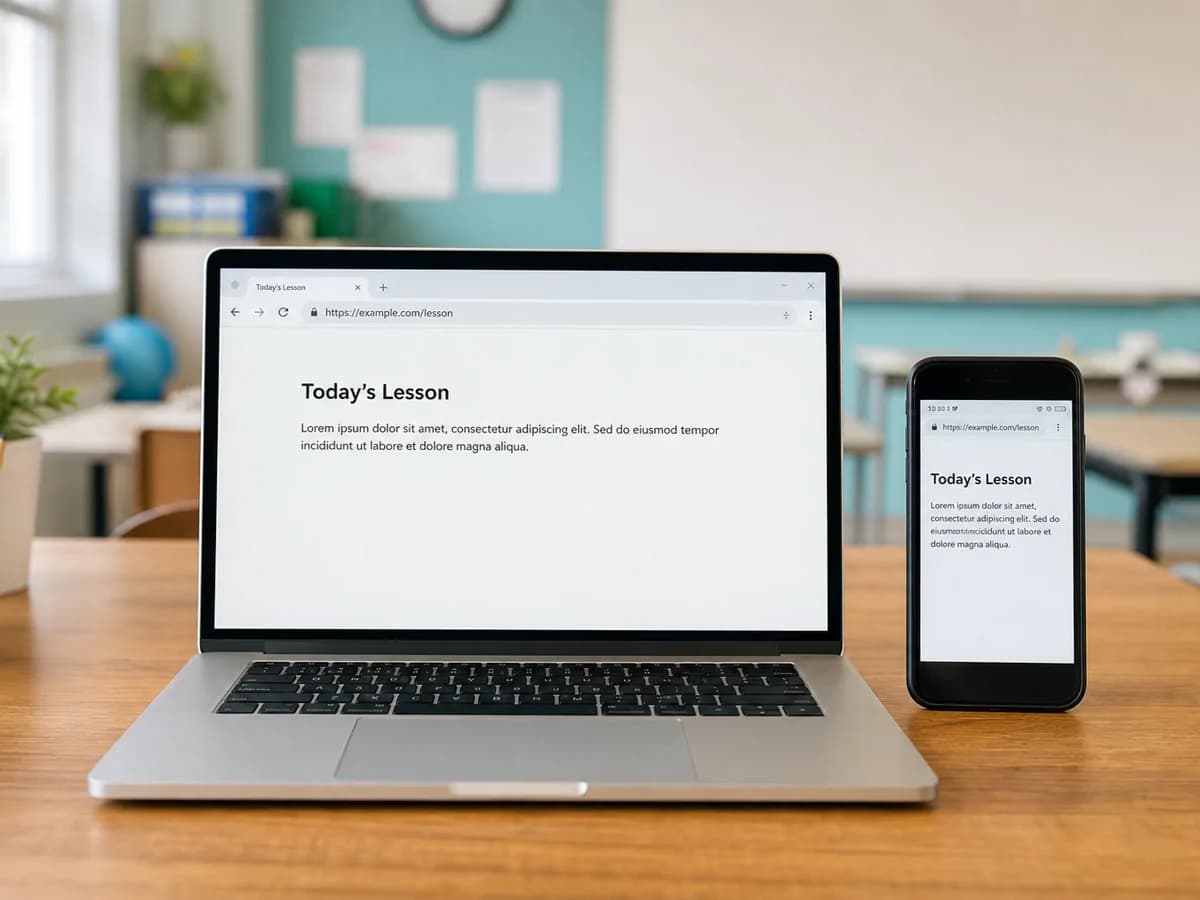
Runs in your browser
Nothing to install, on either device. Open a web page on your classroom computer, open a web page on your phone, and you're running. No app store, nothing to download.
Show any worksheet, book page, or science experiment on your classroom screen — live, from your own phone. No extra equipment to buy, nothing to install. $9.99 once, yours for life.
Try it free — 10 tries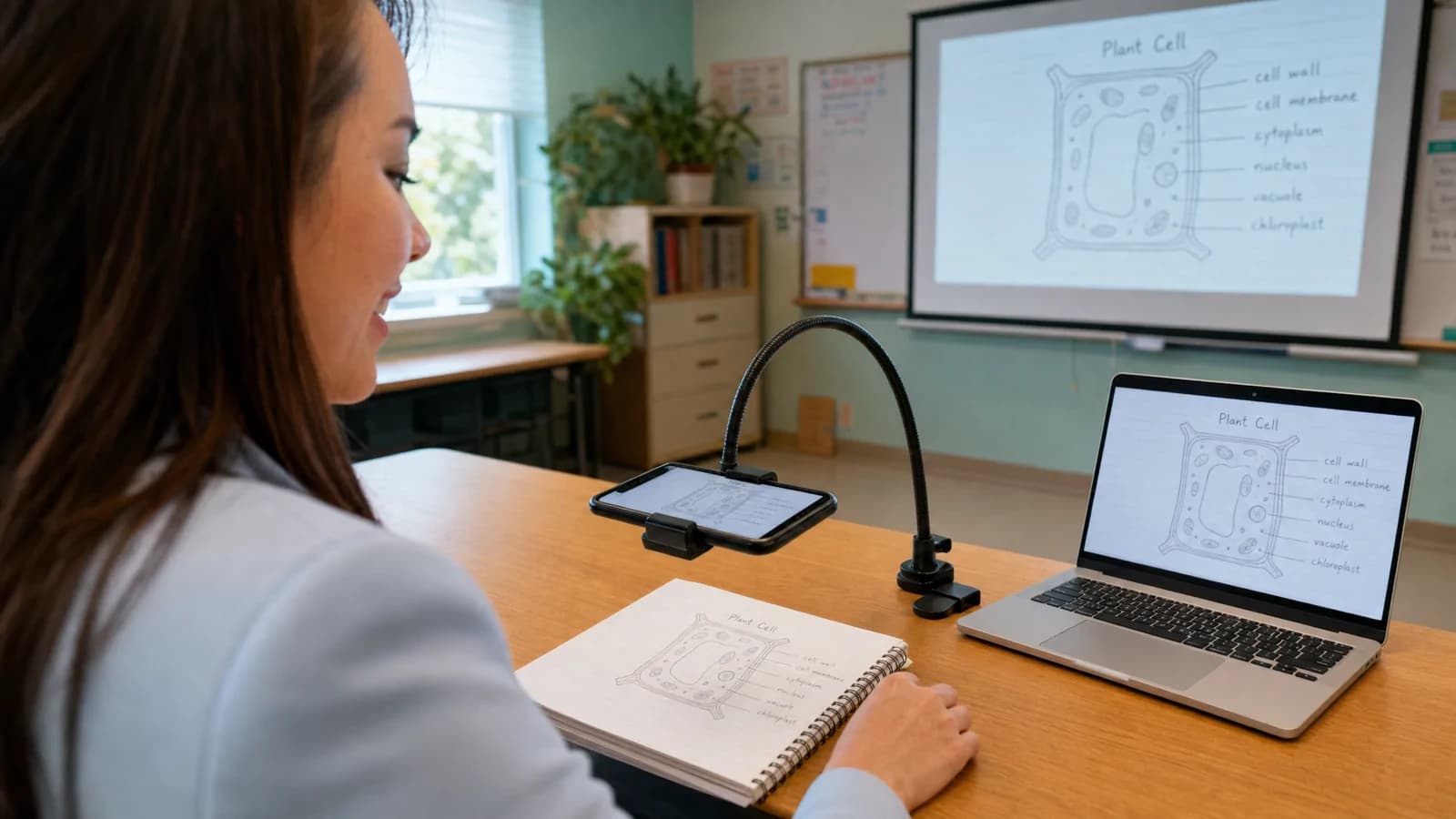
Classroom document cameras run anywhere from eighty to several hundred dollars, and most teachers are told to wait for next year's budget. Your phone already has a better camera than most of them. This turns it into the real thing for the price of a coffee.
What it does
Nothing to install, on either device. Open a web page on your classroom computer, open a web page on your phone, and you're running. No app store, nothing to download.
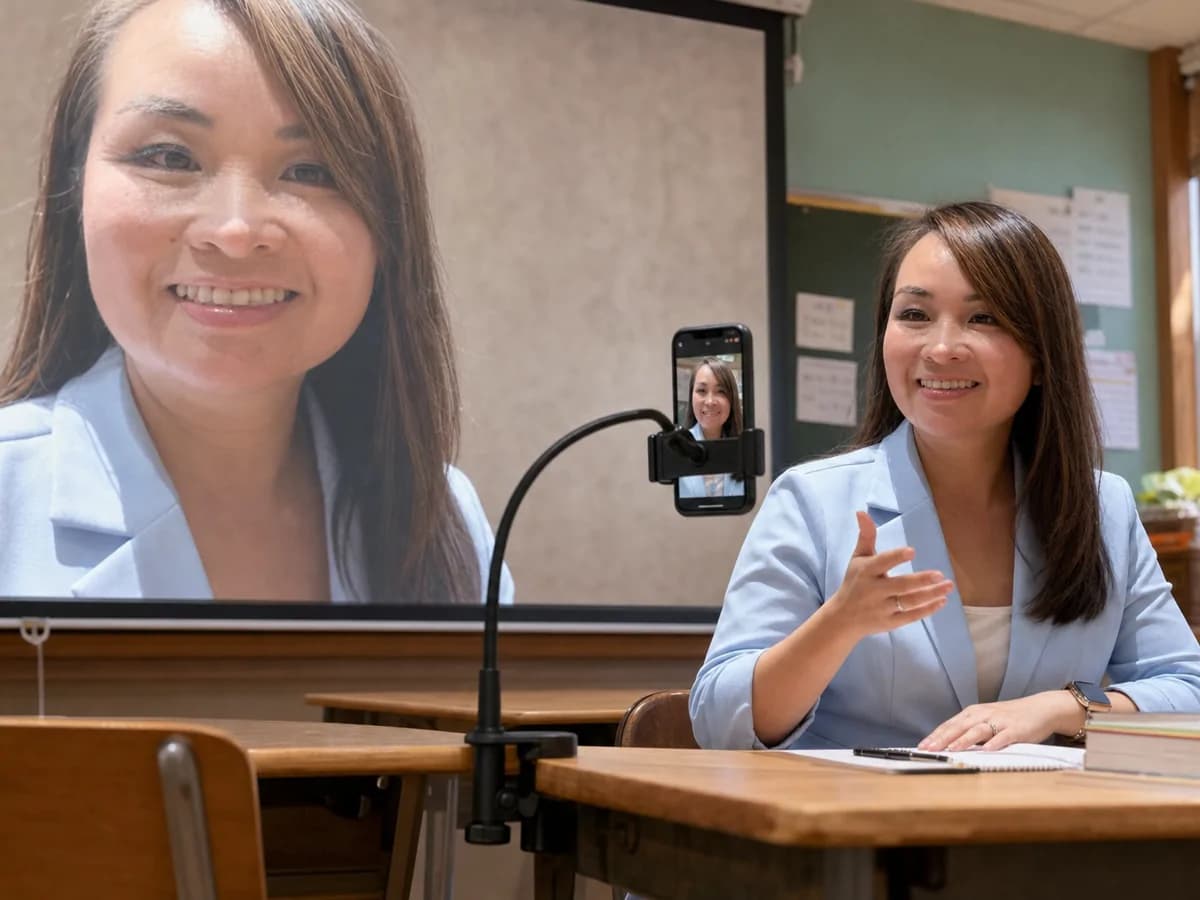
Use the rear camera to show a worksheet, a book, or an experiment. Switch to the front camera to put your own face on the classroom screen.

Tap Freeze and the image holds still on the big screen, so you can turn the page, swap the paper, or point at something without the whole class watching you do it.
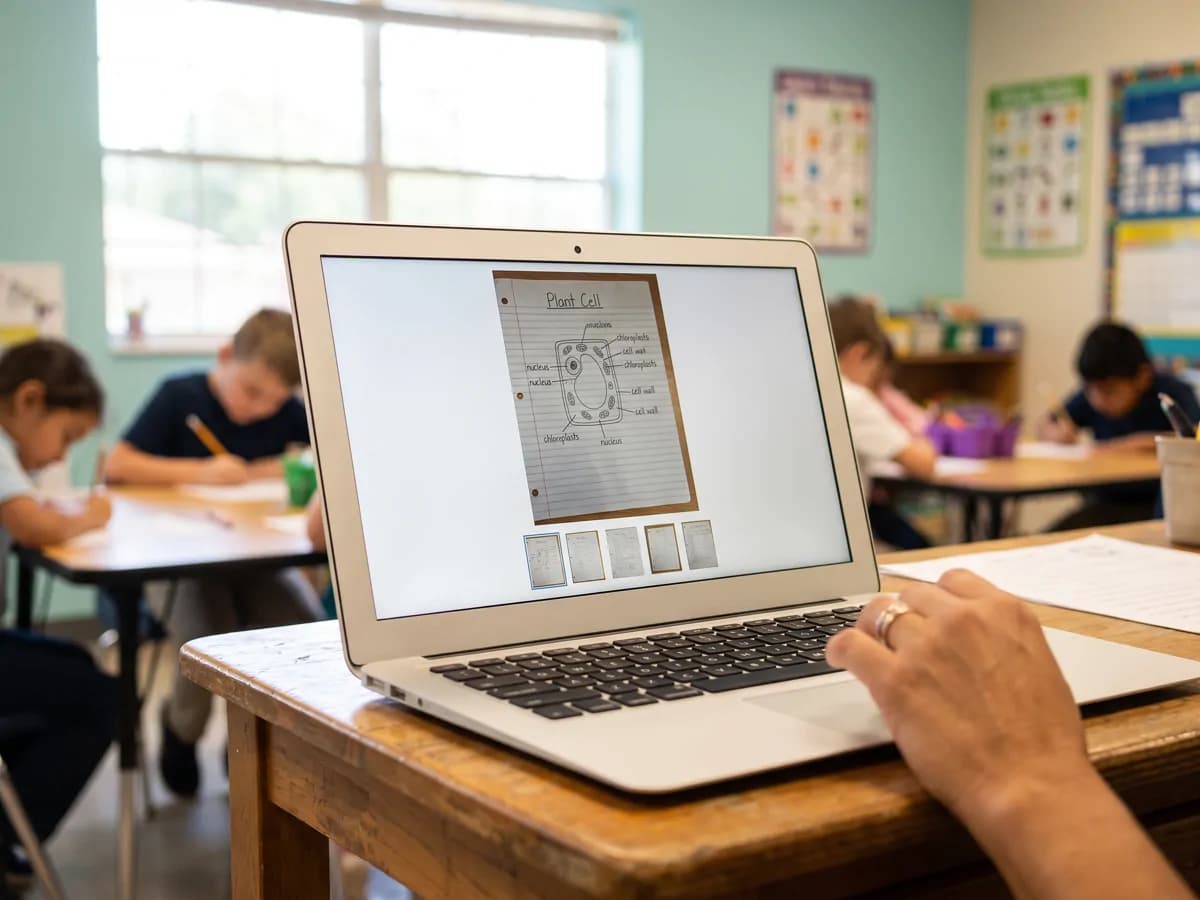
Save what's on screen as an image file on your computer. Post it, print it, or send it to the students who were absent.
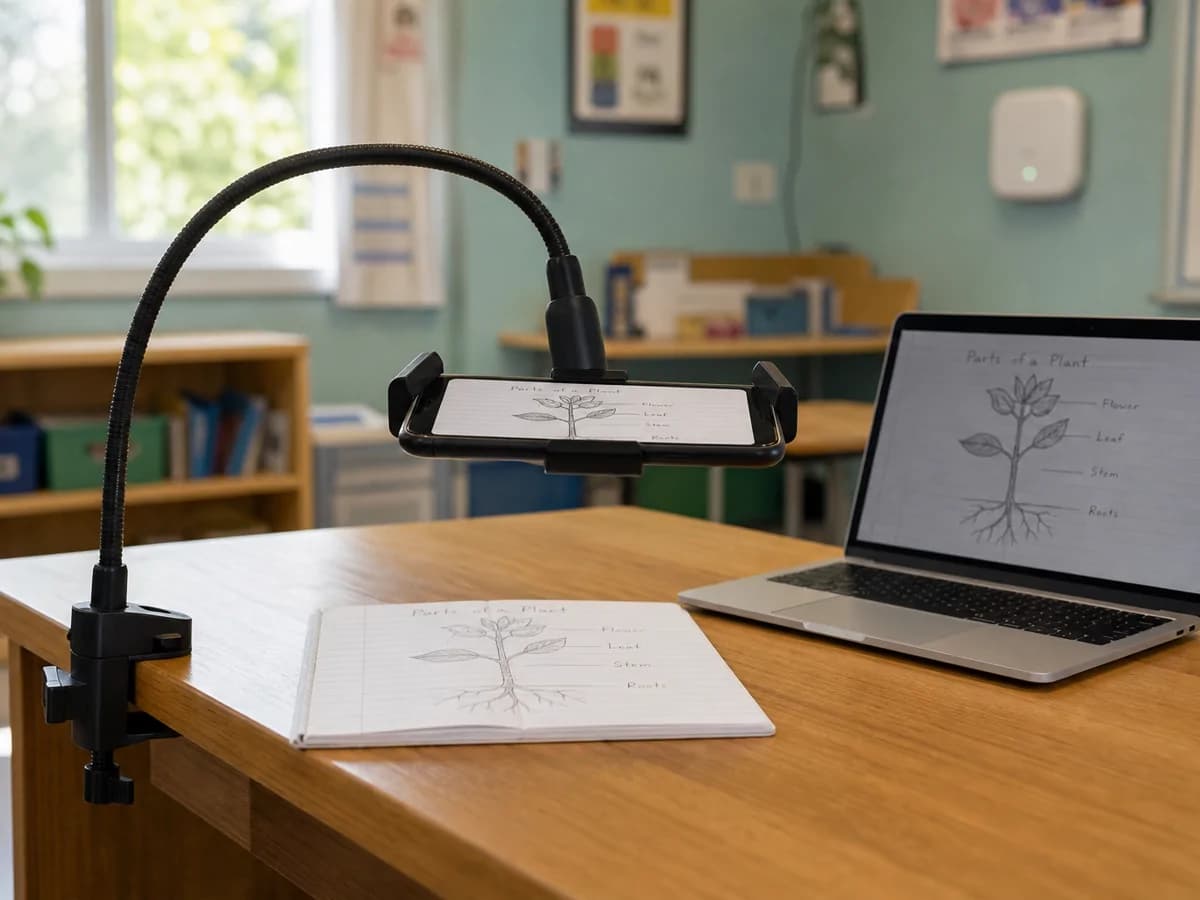
The video goes directly from your phone to your computer over your own network. Nothing is recorded and nothing is stored on our servers.
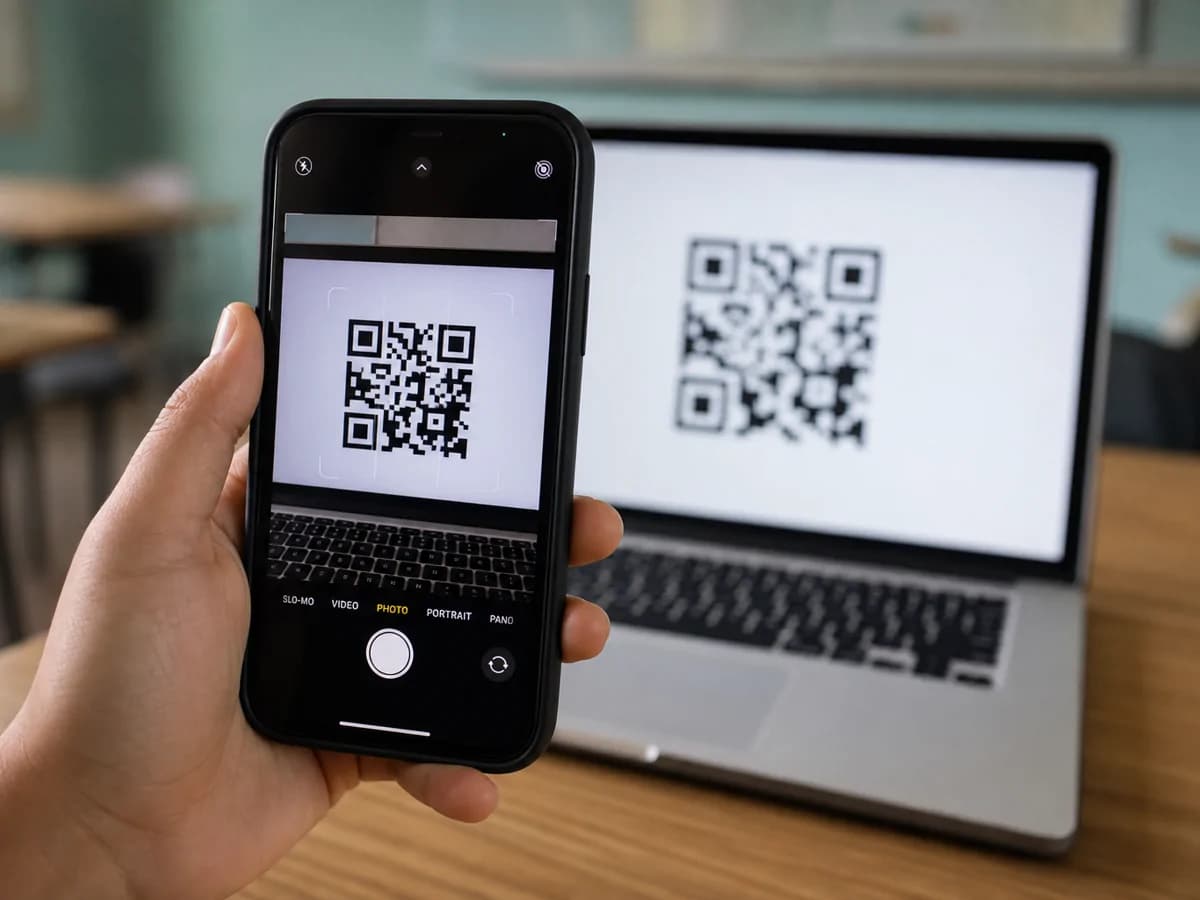
Your computer shows a QR code. Your phone's camera scans it. That's the whole setup — no typing, no account needed on the phone.
How it works
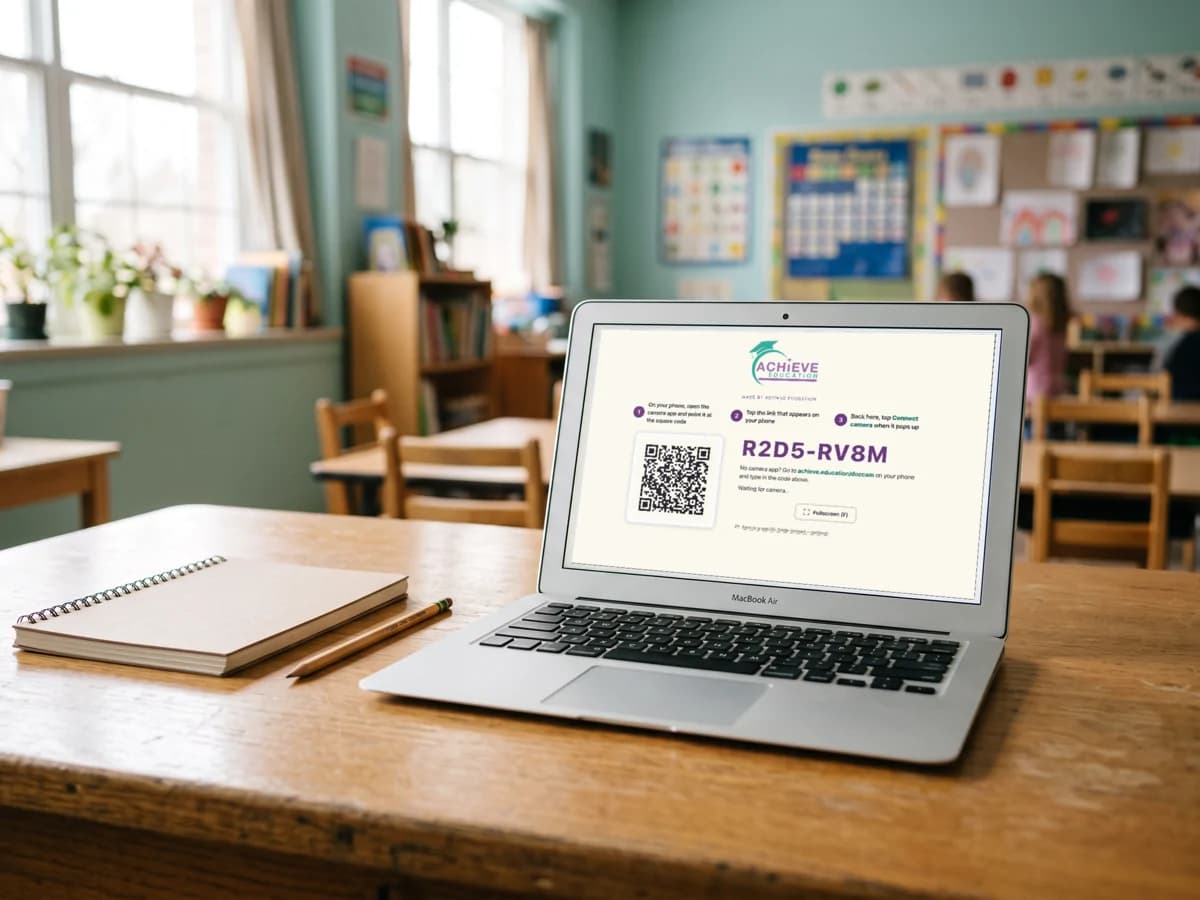
Sign in and open the Document Camera. A QR code appears on the screen.
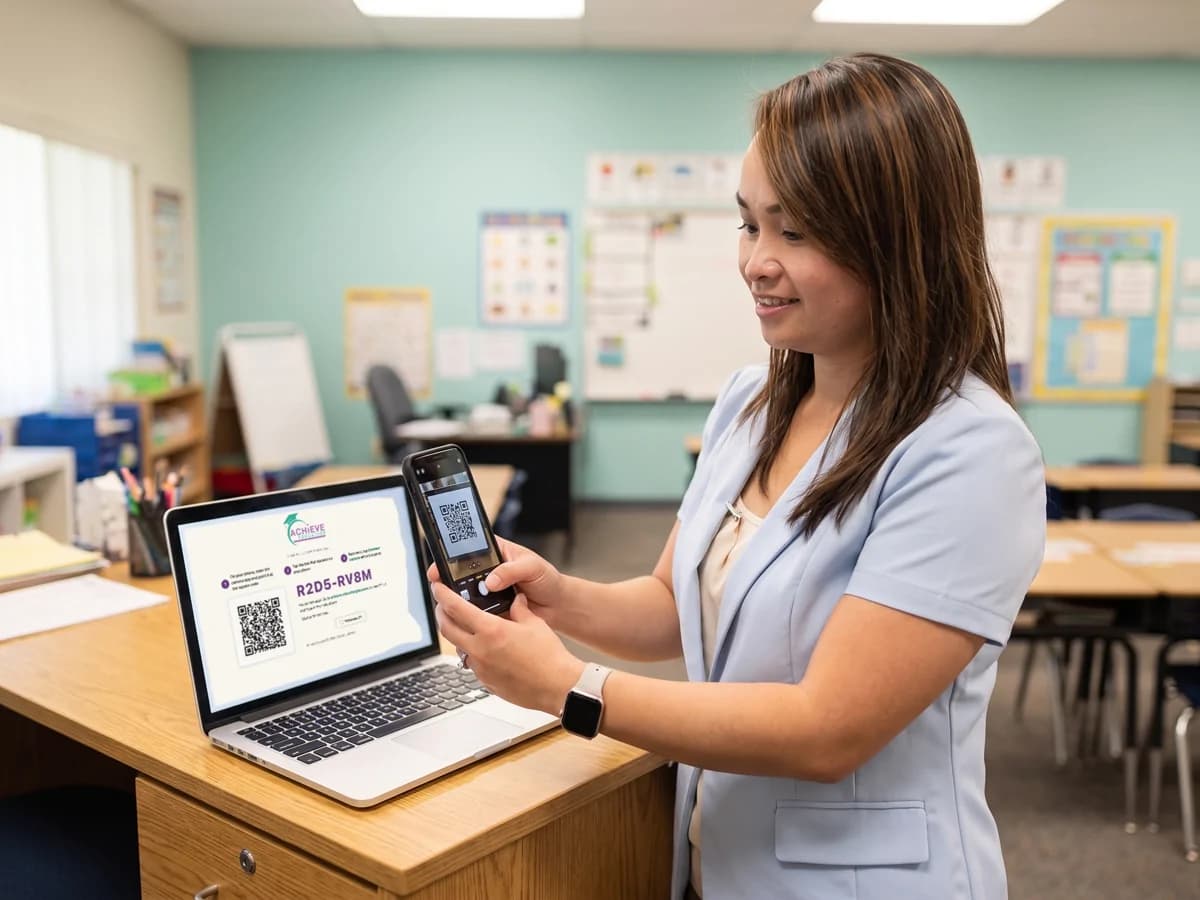
Point your phone's camera at the QR code and tap the link. Your phone's browser opens the camera page and asks permission to use the camera. Tap Allow.
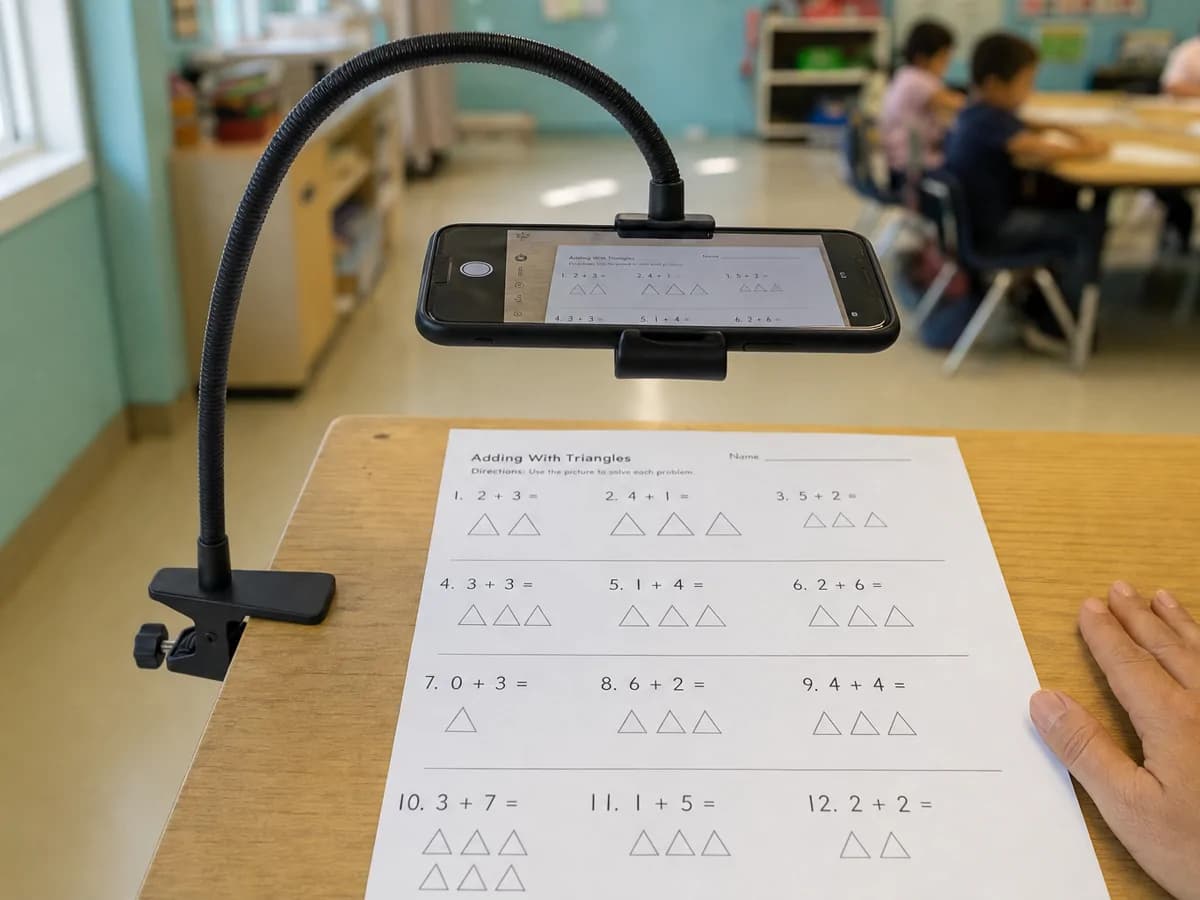
Rest the phone in a stand above whatever you want to show. What the phone sees is now on your classroom screen, live.
The whole equipment list
Pay once and it's yours for life. No subscription, no renewal, no per-classroom licence. You get it in your Achieve Education member area the moment you check out, and it stays there.
Not sure yet? Take 10 free 60-second tries first — no card, nothing to cancel. Long enough to prove it works in your room.
Add to Cart — $9.99Questions, answered
The Document Camera is $9.99, paid one time, for lifetime access. There is no subscription and no renewal fee.
Yes. You get 10 free tries, no card needed. Each try runs for 60 seconds, and the clock only starts when your phone actually connects — so a session that never connects costs you nothing. When your tries are used up, the full version is $9.99, once.
No. The Document Camera runs in the web browser you already use, on both your computer and your phone. There is nothing to download from an app store. If your district keeps a list of approved tools or asks you to check new websites with IT, check with them before you use it with your class.
Yes. Any phone or tablet with a camera and a current web browser works, including iPhone, iPad, and Android devices.
Yes. Your phone and your computer must be on the same WiFi network, because the video travels directly between the two devices instead of going out to the internet.
Usually yes. Some school networks deliberately keep devices from seeing each other, which blocks the direct connection. If that happens, your phone's personal hotspot can help: turn it on and connect your computer to it. Check your district's technology policy first, because a hotspot can take a school computer outside the school's internet filter.
Yes. Tap Freeze and the image holds still on the classroom screen, so you can turn a page, change the paper, or point at something without the class watching you do it.
Yes. Capture saves the current view as an image file on your computer, so you can post it, print it, or send it to students who were absent.
Yes. You can switch between the rear camera for documents and the front camera to put your own face on the classroom screen.
Yes. The video travels directly from your phone to your computer across your own local network. It is not recorded and it is not stored on Achieve Education servers.
A computer connected to your projector or TV, a phone with a camera, both devices on the same WiFi, and something to hold the phone above your paper. Any simple folding phone stand works.